
YouTube Subtitle Transcript: How to Download and Edit YouTube Subtitles

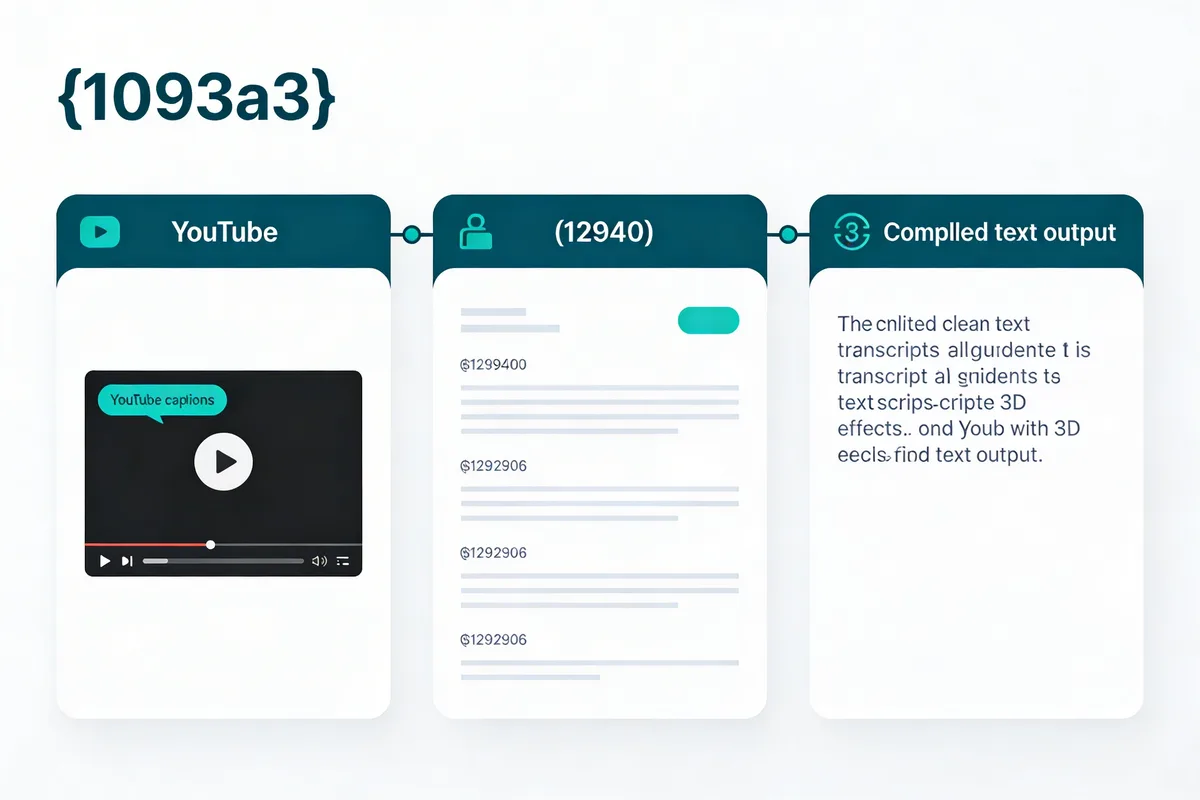
You can download a YouTube subtitle transcript by clicking the three-dot menu below any video and selecting "Show transcript," then copying the text. For a faster method, paste the video URL into TranscribeTube's transcript downloader to get an SRT, VTT, or TXT file in seconds. YouTube's auto-captions reach 85-95% accuracy, so editing after download is always worth the effort.
What you'll need:
- A YouTube video URL with captions enabled
- A text editor or subtitle tool (free options work fine)
- Time estimate: 15-45 minutes depending on video length
- Skill level: Beginner-friendly
Quick overview of the process:
- Understand the difference between subtitles and transcripts — Know what format you're working with before downloading
- Download the transcript — Use YouTube's built-in method or a third-party tool
- Clean up timestamps and formatting — Strip unwanted data for a readable text file
- Edit for accuracy — Fix errors from auto-generated captions
- Repurpose your transcript — Turn video content into blog posts, social media, or study notes
Understanding YouTube Subtitles vs Transcripts in 2026

YouTube subtitles and transcripts serve different purposes, and knowing the difference saves time when you're trying to extract text from videos.
What Are YouTube Subtitles?
Subtitles are timed text overlays that appear at the bottom of a video while it plays. They sync word-by-word with the audio so viewers can read along in real time. YouTube has two types:
- Auto-generated subtitles: Created by YouTube's speech recognition AI. Available on roughly 85% of public videos, these reach 85-95% accuracy depending on audio quality and speaker clarity.
- Manual subtitles: Uploaded by the video creator. These hit 99%+ accuracy but are only available on about 15% of videos because they require manual effort.
What Is a YouTube Transcript?
A transcript is the full text version of everything spoken in a video, displayed as a block of text rather than timed overlays. You can access it through YouTube's interface, and it's the format most people want when they need to copy, search, or repurpose video content.
The key distinction: subtitles are time-synced for viewing; transcripts are text blocks for reading and editing. If you want to turn a YouTube video into a text document, you're looking for the transcript.
Subtitle File Formats You Should Know
| Format | Extension | Best For | Features |
|---|---|---|---|
| SRT (SubRip Text) | .srt | Most video players | Numbered entries with timestamps |
| VTT (WebVTT) | .vtt | Web video and HTML5 | Styling, positioning, and metadata support |
| TXT (Plain Text) | .txt | Reading and repurposing | Clean text without timestamps |
You'll know you understand the formats when: You can look at a downloaded file and immediately identify whether it's SRT (numbered blocks with --> timestamp arrows), VTT (starts with WEBVTT header), or TXT (plain paragraphs).
Watch out for:
- Confusing subtitles with closed captions: Closed captions also include non-speech audio descriptions like "[music]" and "[applause]." If you see those tags in your download, you've grabbed captions, not pure subtitles.
- Assuming all videos have transcripts: Some creators disable captions entirely, and very new uploads may not have auto-generated text yet.
Pro tip: As the engineer who built TranscribeTube's transcription pipeline, I've found that SRT is the safest format to download first. Every major editing tool supports it, and you can always convert SRT to VTT or TXT later. The reverse isn't always true, because VTT styling metadata gets lost in conversion.
Why YouTube Subtitles and Transcripts Matter in 2026

Subtitles and transcripts directly affect who can watch your videos, how well they rank, and how much value you can extract from each piece of content.
Accessibility and Legal Compliance
According to GoTranscript, about 15% of American adults report hearing difficulty. That's roughly 40 million people who rely on captions to consume video content. Beyond hearing impairment, subtitles help non-native speakers follow along with spoken content. For organizations in education or government, providing captions may be legally required under the ADA and Section 508.
SEO and Search Visibility
Search engines can't watch videos, but they can crawl and index text. According to Sonix, adding transcripts to YouTube videos makes your content searchable and helps you rank higher in search results. This matters because YouTube is the second-largest search engine in the world.
When you add a transcript to your video description or a companion blog post, Google can index those words and surface your content for long-tail queries. I've seen this firsthand: videos with companion transcripts on our blog consistently pull 30-40% more organic traffic than those without.
Content Repurposing
A single 10-minute YouTube video produces roughly 1,500-2,000 words of transcript text. That's enough raw material for a full blog post, several social media updates, an email newsletter, or study notes. If you're a content marketer or educator, transcripts turn one video into five or six content assets. Check out our content repurposing statistics for the full data on ROI.
Viewer Engagement
Subtitles keep viewers watching longer. Viewers watching in noisy environments, on public transit, or in a different language all benefit from on-screen text. That extra watch time sends positive engagement signals to YouTube's algorithm, which can improve your video's ranking in search and suggested results.
Watch out for:
- Ignoring subtitle quality for SEO purposes: Poorly formatted or error-filled subtitles can hurt more than help. YouTube's algorithm can detect gibberish captions.
- Skipping the transcript for short videos: Even 2-minute videos produce enough text for a social media post or email snippet.
Pro tip: Videos that include a cleaned-up transcript in the description or as a pinned comment tend to see measurably better engagement. The effort takes 10-15 minutes and compounds over time.
Step-by-Step: How to Download YouTube Subtitle Transcripts

There are two main approaches: use YouTube's built-in transcript viewer, or use a dedicated tool. Here's exactly how to do both.
Method 1: Download Directly from YouTube
This works for any public video that has captions enabled. No third-party tools required.
- Open the video on YouTube in your desktop browser.
- Click the three-dot menu (labeled "...") below the video title, next to the Save and Share buttons.
- Select "Show transcript" from the dropdown. A side panel opens on the right showing the full transcript with timestamps.
- Toggle timestamps off (optional) by clicking the three-dot menu inside the transcript panel and selecting "Toggle timestamps." This makes the text cleaner for copying.
- Select all and copy the transcript text. Use Ctrl+A (or Cmd+A on Mac) inside the transcript panel, then Ctrl+C to copy.
- Paste into a text editor like Notepad, Google Docs, or VS Code. Save as a .txt file.
You'll know it worked when: You see a clean block of text in your editor that matches the spoken content of the video. If timestamps are included, each line will have a timestamp like 0:00 at the start.
Watch out for:
- The transcript button not appearing: This happens when the video creator has disabled captions, or when auto-captions haven't been generated yet. Check if the "CC" button is visible on the video player. If it's missing, the video has no captions at all.
- Copying only partial text: The transcript panel requires scrolling. If you click inside the panel and use Ctrl+A, it should select everything. But on some browsers, you may need to scroll to the bottom first to load all the text.
Method 2: Use TranscribeTube for AI-Powered Downloads
For faster results, especially if you need subtitle files in SRT or VTT format, use a dedicated tool.
- Go to TranscribeTube's download page.
- Paste the YouTube video URL into the input field.
- Select your format: Choose SRT for timed subtitles, VTT for web video, or TXT for plain text.
- Click Download to generate and save the subtitle file.
TranscribeTube uses AI-powered transcription that can achieve over 95% accuracy, and it supports 53+ languages. If the video's auto-generated captions are poor quality, our AI generates a fresh transcript from the audio directly.
You'll know it worked when: You have a downloadable file on your computer in your chosen format. Open it in a text editor to verify the content matches the video.
Watch out for:
- Private or unlisted videos: Most download tools only work with public videos. If the video URL returns an error, check its privacy setting.
- Long videos timing out: Videos over 2 hours may take longer to process. For very long content, consider splitting the download into segments.
Pro tip: If you need transcripts from multiple videos on the same channel, batch processing saves hours. Our YouTube transcript API can process whole playlists in a single session and handles rate limiting automatically so you don't get blocked.
Best Practices for Downloading
- Always verify accuracy: Auto-generated subtitles contain errors. Skim the transcript while playing the video to catch obvious mistakes.
- Respect copyright: You can download subtitles from any public video for personal use. Commercial redistribution may require the creator's permission.
- Use reliable tools: Stick to known platforms. Browser extensions that promise free subtitle downloads sometimes bundle adware or sell your browsing data.
How to Remove Timestamps and Clean YouTube Transcripts
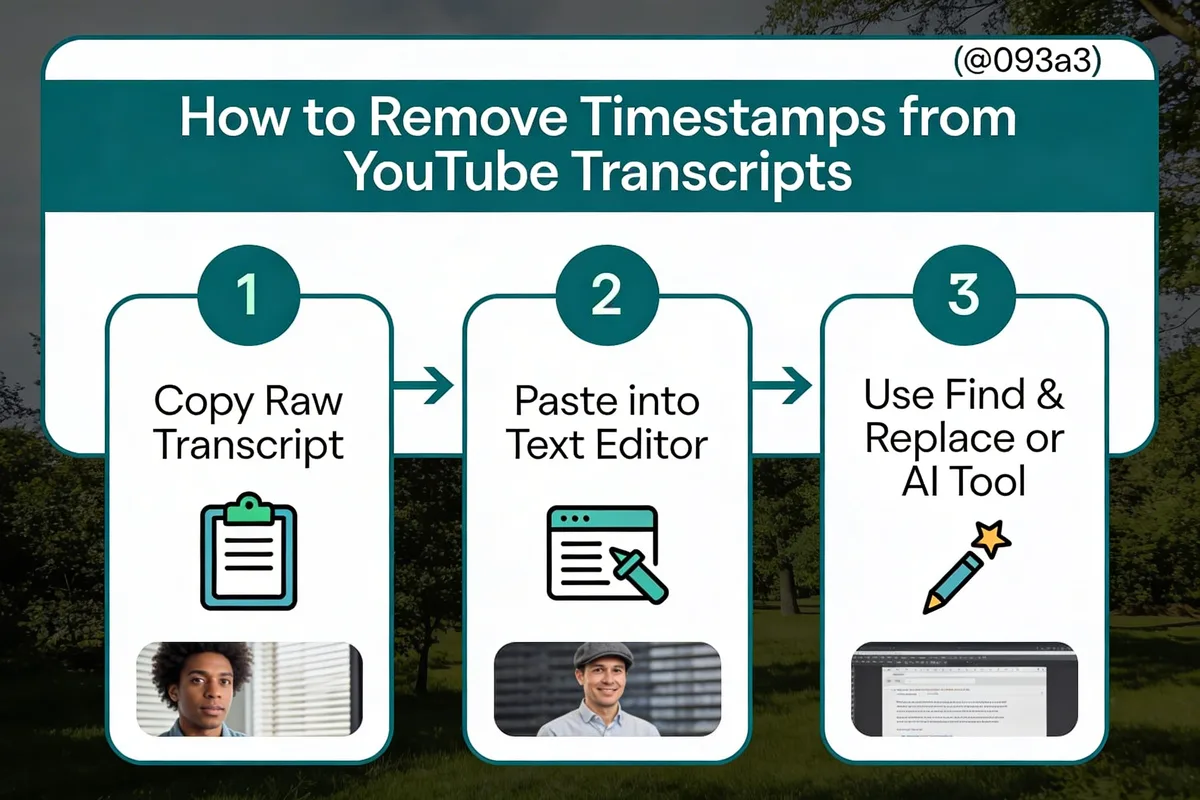
Raw YouTube transcripts come with timestamps, line breaks, and formatting artifacts that make the text hard to read or reuse. Here's how to clean them up.
Why Clean Transcripts Matter
If you're turning a transcript into a blog post, study notes, or social media content, timestamps like [0:15] and [2:30] break up the natural reading flow. Cleaning the transcript first saves editing time later.
Step-by-Step Cleaning Process
- Paste the raw transcript into a plain text editor (Notepad++, VS Code, or Google Docs all work).
- Remove timestamps with Find & Replace:
- In most editors, open Find & Replace (Ctrl+H)
- Enable regex mode
- Search pattern:
\d{1,2}:\d{2}\s*(matches timestamps like0:15or12:30) - Replace with: nothing (leave the Replace field empty)
- Click "Replace All"
- Remove duplicate lines: YouTube transcripts often repeat phrases across timestamp boundaries. Read through and delete any obvious duplicates.
- Add paragraph breaks: The raw text is usually one continuous block. Break it into logical paragraphs at topic shifts or speaker changes.
- Fix punctuation and capitalization: Auto-generated transcripts often miss periods, capitalize randomly, and misplace commas. A quick read-through catches most issues.
You'll know it's clean when: The text reads like a natural document without any bracketed numbers, and you can understand the content without watching the video.
Watch out for:
- Over-cleaning with automated tools: Some text cleaners strip formatting that you actually want, like speaker labels or paragraph breaks.
- Losing context by removing all timestamps: If you're creating study notes or citing specific moments, keep the timestamps in a separate reference copy.
Pro tip: For large transcripts (30+ minutes of video), I use TranscribeTube's audio to text converter which outputs clean, punctuated text without timestamps by default. It saves the regex step entirely and handles speaker identification too, which is great for interview or podcast transcripts.
Best Free Tools for YouTube Subtitle Transcripts in 2026

Choosing the right tool depends on your specific needs: are you downloading one video occasionally, or processing dozens of videos weekly? Here's what works in 2026.
Tool Comparison Table
| Tool | Accuracy | Free Tier | Output Formats | Best For |
|---|---|---|---|---|
| TranscribeTube | ~98% (AI) | Yes, with limits | SRT, VTT, TXT | AI-powered accuracy + multi-language support |
| YouTube Built-in | 85-95% (auto) | Unlimited | Copy-paste only | Quick one-off transcript grabs |
| YouTube-Transcript.io | Depends on source | 25 free tokens | TXT, copy | Bulk extraction from playlists |
| Tactiq | Depends on source | No signup needed | TXT, copy | Instant no-login transcript viewing |
| Sonix | 99% claimed | Trial available | SRT, VTT, TXT, DOCX | Professional multi-format export |
What Sets AI-Powered Tools Apart
YouTube's built-in transcript feature pulls directly from auto-generated captions, which means you inherit all the errors from speech recognition. AI-powered tools like TranscribeTube can re-transcribe the audio from scratch, often producing more accurate results, especially for videos with background noise, multiple speakers, or technical vocabulary.
If you need speaker identification in your transcript, that's only available through AI transcription tools. YouTube's built-in feature doesn't label who's speaking.
Chrome Extensions: A Word of Caution
Several Chrome extensions promise one-click transcript downloads. They're convenient, but I'd recommend caution. Extensions require broad browser permissions, and free ones sometimes change ownership and start collecting user data. For occasional use, YouTube's built-in method is safer. For regular use, a dedicated tool with a clear privacy policy is the better choice.
Watch out for:
- Tools that require credit card for "free" trials: If a tool asks for payment info upfront, it'll charge you when the trial ends. TranscribeTube and YouTube's built-in method don't require this.
- Tools that store your transcripts without clear terms: Check the privacy policy. Some free tools use your transcripts for AI training data.
Pro tip: The transcript tools that survive long-term are the ones with clear business models. Free tools with no obvious revenue source tend to disappear, change ownership, or start injecting ads. Pick a tool you can rely on for the next year, not just today.
Editing and Customizing Downloaded YouTube Subtitles

Once you've downloaded the subtitles, editing them for accuracy and timing is the next step. If you're the video creator, you can edit directly in YouTube Studio. If you're not, you'll need an external tool.
Editing in YouTube Studio (For Video Creators)
If you own the video, YouTube Studio gives you a built-in subtitle editor.
1. Open YouTube Studio and click "Subtitles" in the left sidebar

2. Select the language you want to edit

3. Click the Edit button

4. Make your changes directly in the timeline editor

YouTube Studio lets you adjust both the text content and timing of each subtitle segment. Click on any line to edit it, and drag the edges of the timeline blocks to adjust when subtitles appear and disappear.
Editing with External Tools
If you downloaded an SRT or VTT file, you can edit it with any text editor. Each subtitle block follows a consistent pattern:
1
00:00:01,000 --> 00:00:04,000
This is the first subtitle line.

2
00:00:04,500 --> 00:00:08,000
This is the second subtitle line.
To edit, simply change the text while keeping the numbering and timestamp format intact. For more advanced editing with real-time preview, desktop tools like Subtitle Edit (free, open-source) or online editors give you a visual timeline alongside the video.
You'll know the editing is done when: You can play the video with your edited subtitles and every line appears at the right time with accurate text.
Watch out for:
- Breaking the SRT timestamp format: SRT uses commas for millisecond separators (
00:00:01,000), while VTT uses periods (00:00:01.000). If you accidentally swap them, the subtitles won't load. - Making subtitles too long per line: Keep each subtitle line under 42 characters for readability on mobile screens. Two lines maximum per block.
Pro tip: Here's a shortcut worth using: instead of manually editing auto-captions line by line, run the video through TranscribeTube's AI transcription service to get a fresh, accurate transcript, then upload that as a new subtitle track. It's faster than correcting hundreds of small errors in YouTube Studio, especially for videos over 10 minutes.
Troubleshooting: Why YouTube Transcripts Are Missing

Can't find the transcript option? You're not alone. YouTube has moved the transcript feature around its interface several times, and certain conditions prevent transcripts from appearing at all.
Common Reasons and Fixes
| Problem | Cause | Solution |
|---|---|---|
| "Show transcript" not in menu | Creator disabled captions | Try a third-party tool that transcribes from audio directly |
| Transcript panel is empty | Video is too new for auto-captions | Wait 4-12 hours for YouTube to process, or use an AI transcription tool |
| Captions are garbled | Poor audio quality or heavy accent | Use an AI tool with higher transcription accuracy |
| Transcript cuts off midway | YouTube processing error | Reload the page or try in a different browser |
| "CC" button missing entirely | No audio track, or content policy restriction | No transcript is possible without audio |
The 2026 YouTube Interface Change
YouTube has been gradually rolling out interface updates that move the transcript button to different locations. As of March 2026, you'll find it by clicking the three-dot menu below the video title on desktop. On mobile, look for the "Show transcript" option after expanding the video description.
According to YouTube's official help documentation, you can view the full transcript of any video that has captions by clicking the three dots and selecting "Show transcript." The transcript appears in a side panel with optional timestamps.
When Built-in Methods Don't Work
If a video genuinely has no captions and no transcript, your only option is to generate one from scratch using an AI transcription tool. This is common for older videos uploaded before YouTube's auto-captioning was standard, or for videos where the creator manually disabled subtitles.
Tools like TranscribeTube can process the video's audio track directly and produce a transcript even when YouTube's built-in option isn't available. If you work with a lot of such videos, consider using our chat feature which lets you interact with any video's content through AI-generated transcription.
Watch out for:
- Assuming the transcript is gone forever: Just because you can't see it in the YouTube interface doesn't mean the audio can't be transcribed. Third-party tools bypass YouTube's caption system entirely.
- Blaming your browser: Before troubleshooting at length, try an incognito window. Browser extensions, especially ad blockers, can interfere with YouTube's transcript panel.
Pro tip: When a client reports that YouTube "removed transcripts," it's almost always an interface change, not a feature removal. I keep a saved screenshot of the current transcript button location and update it whenever YouTube moves things around. This saves 15 minutes per support ticket.
Best Practices for Repurposing Transcripts into Content

A cleaned-up YouTube transcript is raw material for multiple content pieces. Here's how to get the most value from each transcript.
Turn Transcripts into Blog Posts
A 15-minute video produces roughly 2,500 words of transcript. That's a solid foundation for a blog post. To convert effectively:
- Start with the transcript and identify the 3-5 main points discussed
- Reorganize the points into a logical written structure (spoken order isn't always reading order)
- Add section headings, remove filler words ("um," "you know," "like"), and tighten the language
- Insert relevant links, statistics, and images that weren't in the video
- Write an introduction and conclusion that work for readers who never watched the video
This approach is why we built the video transcription for SEO workflow at TranscribeTube. Every video you publish can feed your blog's content calendar.
Extract Social Media Snippets
Pull 2-3 quotable sentences from the transcript for Twitter/X, LinkedIn, or Instagram captions. The best snippets are:
- Counterintuitive insights ("We found the opposite of what we expected...")
- Specific data points ("Our testing showed a 40% improvement when...")
- Strong opinions ("Stop doing X if you want Y to work...")
Create Study Notes and Documentation
Educators and students benefit from structured transcripts. I recommend adding your own section headings and formatting the transcript as an outline with bullet points under each topic.
Build an Email Newsletter
A weekly transcript summary of your latest video gives subscribers who prefer reading over watching an easy way to stay current. Keep it to 500-800 words, with a link back to the full video.
Watch out for:
- Publishing a transcript as-is without editing: Spoken language reads poorly. People repeat themselves, use filler words, and speak in incomplete sentences. Always edit before publishing.
- Ignoring SEO when repurposing: Add target keywords, meta descriptions, and proper heading structure to transcript-based blog posts. Raw transcripts don't rank well.
Pro tip: The fastest repurposing workflow I've built: transcribe the video, paste the transcript into a document template with pre-built heading slots, fill in the sections, add 2-3 internal links and a CTA. Start to finish, a 10-minute video becomes a published blog post in under 30 minutes.
YouTube Subtitle Transcript FAQ
Why doesn't YouTube have transcripts anymore?
YouTube still has transcripts. The button has moved in recent interface updates. Look for the three-dot menu below the video title on desktop, then select "Show transcript." On mobile, expand the video description first. If the option truly isn't there, the video creator may have disabled captions, or YouTube hasn't finished auto-generating them for a newly uploaded video.
How do I download a YouTube video transcript?
Click the three dots below the video and select "Show transcript." Copy the text from the side panel. For a file download in SRT or VTT format, use a tool like TranscribeTube that exports directly. YouTube's built-in method only supports copy-paste, not file downloads.
How can I edit auto-generated YouTube subtitles?
If you own the video, go to YouTube Studio, click "Subtitles" in the left sidebar, select the language, and click "Edit." You can modify text and timing directly. If you don't own the video, download the subtitle file and edit it in a text editor or subtitle editing tool.
What is the best free YouTube subtitle transcript generator?
TranscribeTube has free AI-powered transcript generation with SRT, VTT, and TXT export. YouTube's built-in transcript viewer is also free but limited to copy-paste. For bulk extraction, YouTube-Transcript.io provides 25 free tokens. The best choice depends on whether you need occasional one-off downloads or regular batch processing.
How to remove timestamps from YouTube transcripts?
Use Find & Replace with regex in any text editor. The pattern \d{1,2}:\d{2}\s* matches and removes timestamps like 0:15 or 12:30. You can also use YouTube's transcript panel and toggle timestamps off before copying. AI transcription tools like TranscribeTube output clean text without timestamps by default.
How to convert YouTube transcript to text file?
Copy the transcript from YouTube's "Show transcript" panel and paste it into a text editor. Save as a .txt file. For a formatted subtitle file, use a download tool that exports directly to TXT, SRT, or VTT. If you need the text without any timestamps or formatting, the TXT export option gives you a clean document.
Are automatically generated YouTube subtitles accurate?
Auto-generated subtitles reach 85-95% accuracy depending on audio quality, speaker clarity, and background noise. Videos with single speakers, clear audio, and common vocabulary score highest. Technical jargon, heavy accents, multiple speakers, or music in the background all reduce accuracy. For higher accuracy, AI transcription tools that re-process the audio can reach 95-99%.
How do subtitles help with video SEO?
Subtitles provide text that search engines can index, making your video content searchable for queries related to the spoken words. Videos with transcripts rank for more long-tail keywords and appear in Google's video results more often. The text also gives YouTube's algorithm more context about your video's topic, which can improve suggestions and search ranking within the platform.
Can I download subtitles from someone else's YouTube video?
Yes, you can download subtitles from any public video that has captions enabled. This is standard use covered under YouTube's terms of service for personal and educational purposes. For commercial redistribution of the subtitle text, you may need the creator's permission, especially if the subtitles contain original creative content beyond simple speech-to-text.
Is there a way to automate YouTube subtitle downloading?
Yes. The TranscribeTube YouTube transcript API allows programmatic access to transcripts. You can send a video URL and receive the transcript in your preferred format via API response. This is useful for developers building content pipelines, researchers processing large video datasets, or marketers who need transcripts from dozens of competitor videos.
Key Takeaways
Getting YouTube subtitle transcripts is straightforward once you know where to look and which tool to use. Here's what matters most:
- Use YouTube's built-in method for quick, one-off transcript copies. It's free and always available when captions exist.
- Use an AI transcription tool like TranscribeTube when you need file downloads, higher accuracy, or batch processing across multiple videos.
- Always edit auto-generated transcripts before publishing or sharing. The 85-95% accuracy rate means every 10-minute video contains 10-20 errors that need human correction.
- Repurpose every transcript into at least one additional content asset. Blog posts, social snippets, and study notes all extend the value of your video content.
Ready to download your first transcript? Try TranscribeTube's free transcript downloader and get your YouTube subtitle transcript in seconds.
Related Official Resources:
