
What Is a YouTube Transcript? How to Open, View, and Use Transcripts in 2026

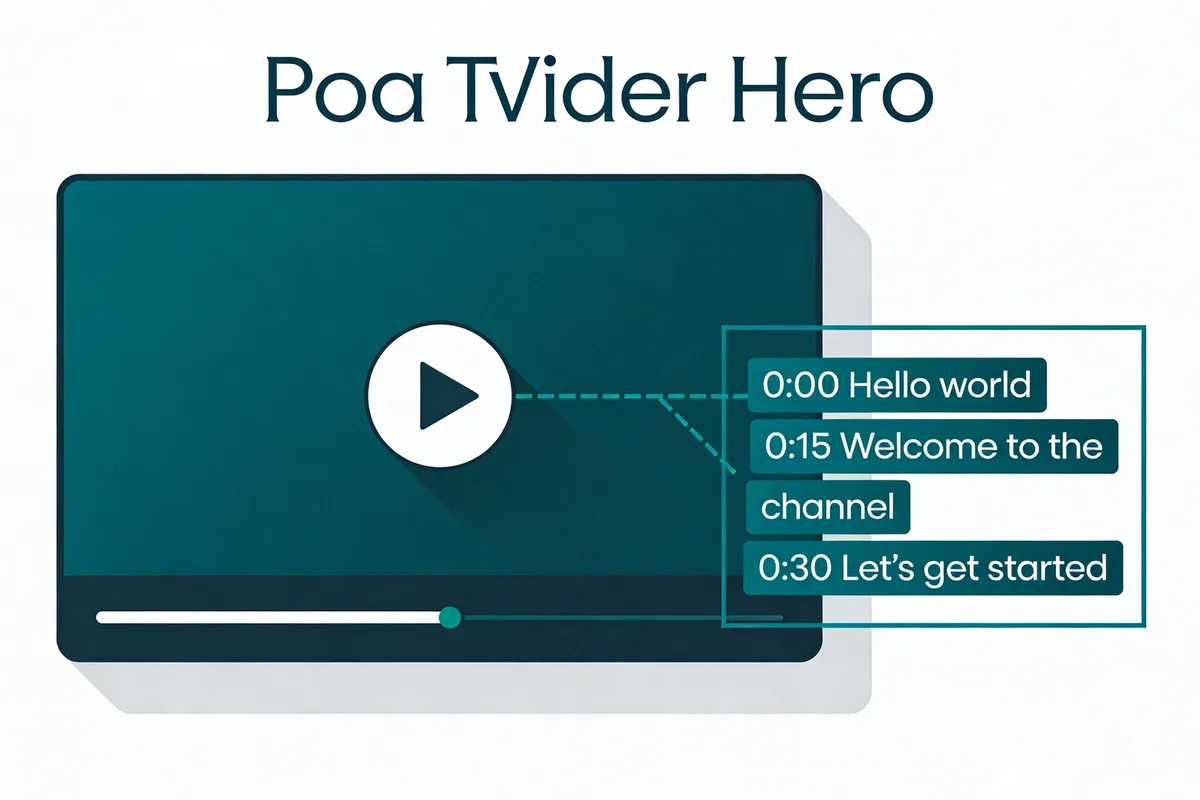
A YouTube transcript is the full text version of everything spoken in a video, displayed with timestamps that sync to the audio. YouTube generates these automatically using speech recognition, though creators can upload their own for better accuracy. Transcripts make videos searchable, accessible to deaf and hard-of-hearing viewers, and ready for repurposing into blog posts, social content, and study notes.
YouTube transcript is a time-stamped text record of a video's spoken audio, generated automatically by YouTube's speech recognition or uploaded manually by the creator. It serves as both an accessibility feature and a content repurposing tool, making video information searchable and quotable.
What Is a YouTube Transcript in 2026?
A YouTube transcript is a text document that contains every word spoken in a YouTube video, synced to specific timestamps. Think of it as a readable script that follows along with the video in real time.
When you open a transcript on YouTube, you'll see lines of text with clickable timestamps. Click any timestamp, and the video jumps to that exact moment. This makes transcripts useful for more than just reading. They're a navigation tool.
YouTube creates transcripts through two methods:
- Automatic speech recognition (ASR): YouTube's AI listens to the audio and converts speech to text. This happens on most videos by default. Accuracy sits around 85-95% for clear English speech, but drops with background noise, heavy accents, or technical jargon.
- Creator-uploaded captions: Video creators can upload their own transcript files (SRT, VTT, or plain text). These are typically more accurate because a human reviewed them.
As of 2026, YouTube's ASR system supports over 100 languages and has improved significantly through machine learning updates. According to Contently, AI search tools like ChatGPT Search, Google's AI Overviews, and Perplexity now cite YouTube transcripts when compiling answers. That means your video's transcript can appear directly in AI-generated search results.
For content creators and marketers, this changes the game. A well-transcribed video isn't just accessible. It's discoverable across search engines and AI platforms simultaneously.
Automated vs Manual YouTube Transcripts: Key Differences
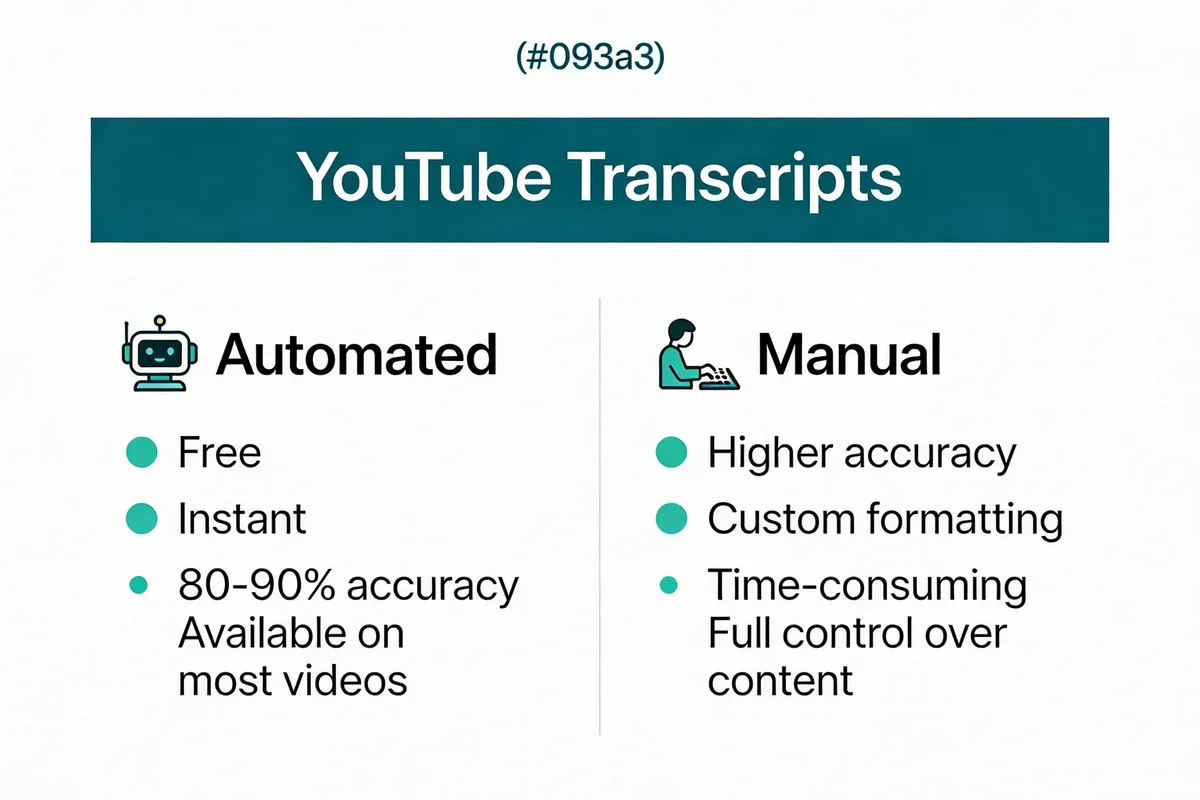
Not all YouTube transcripts are equal. The difference between automated and manually uploaded transcripts affects accuracy, formatting, and how useful the text actually is.
Automated Transcripts
YouTube generates these for free on virtually every video with spoken audio. The system uses Google's ASR engine, which processes audio in real time and produces timestamped text.
What automated transcripts get right:
- Available instantly after upload (no extra work needed)
- Support 100+ languages
- Decent accuracy for clear, single-speaker recordings
Where they fall short:
- Punctuation is often missing or incorrect
- Speaker identification doesn't exist (all text appears as one stream)
- Technical terms, proper nouns, and brand names frequently get mangled
- Heavy accents or overlapping speakers cause accuracy to plummet
Manually Uploaded Transcripts
Creators upload these as SRT, VTT, or SBV files through YouTube Studio. Some use professional transcription services; others create them using tools like TranscribeTube's audio to text converter and then review the output.
Advantages of manual transcripts:
- Near-perfect accuracy when human-reviewed
- Proper punctuation and formatting
- Can include speaker labels and sound descriptions
- Better for SEO because the text exactly matches what was said
| Feature | Automated | Manual |
|---|---|---|
| Cost | Free | Free to upload (creation costs vary) |
| Accuracy | 85-95% for clear audio | 98-100% with human review |
| Setup time | Instant | Minutes to hours |
| Speaker labels | No | Yes (if added) |
| Punctuation | Inconsistent | Accurate |
| SEO value | Moderate | High |
In my experience building TranscribeTube over the past several years, I've found that the best approach for most creators is a hybrid one: use AI transcription to generate the initial text, then do a quick human review to catch errors. This gives you 99%+ accuracy without spending hours on manual transcription.
How to Open and View YouTube Transcripts on Desktop and Mobile

Opening a YouTube transcript takes under 10 seconds once you know where to look. The steps differ slightly between desktop and mobile, and YouTube has moved the button around a few times. Here's exactly where to find it in 2026.
Desktop (Browser)
- Navigate to the video on youtube.com
- Click the three-dot menu (...) below the video player, next to the Share and Save buttons
- Select "Show transcript" from the dropdown menu
- A transcript panel appears on the right side of the video
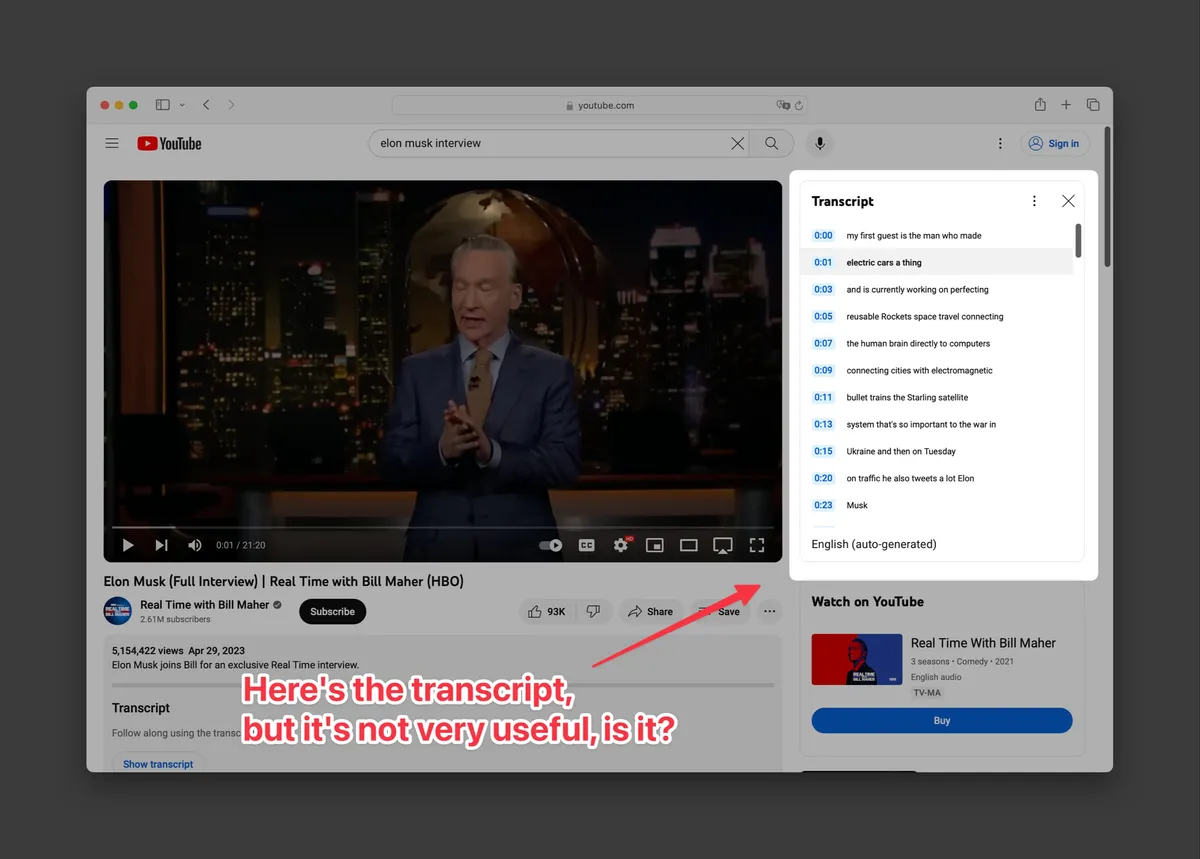
The transcript panel shows timestamped text. Click any line to jump to that moment in the video. You can also use the search bar at the top of the panel to find specific words or phrases within the transcript.
Mobile (YouTube App)
- Open the YouTube app and play the video
- Tap the video title to expand the description area
- Scroll down and tap "Show transcript"
- The transcript loads below the description
On mobile, the transcript doesn't appear in a side panel. Instead, it shows inline below the video details. You can still tap timestamps to navigate.
Quick Tip: Copy the Full Transcript
Want the full text? On desktop, click inside the transcript panel, press Ctrl+A (or Cmd+A on Mac) to select all text, then Ctrl+C to copy. Paste it into any document. For a cleaner solution, you can download YouTube transcripts directly with formatting preserved.
Benefits of YouTube Transcripts for Accessibility and SEO

YouTube transcripts aren't just nice to have. They directly affect who can watch your content, how search engines find it, and how much value you extract from each video.
Accessibility for Deaf and Hard-of-Hearing Viewers
Over 430 million people worldwide have disabling hearing loss, according to the World Health Organization. Without transcripts or captions, your video content is invisible to this audience.
Transcripts also help viewers in noisy environments (commuters, open offices), people with auditory processing disorders, and anyone who simply prefers reading to listening. Channels that add accurate transcripts consistently see longer average view durations from these segments.
SEO and Search Visibility
Google can't watch your video. But it can read your transcript. When a transcript is available, search engines index the full text, which means your video can rank for hundreds of keyword variations that the title and description alone would never capture.
This matters because video transcriptions can measurably boost your SEO. Transcripts give search engines a complete content signal. Instead of guessing what your video covers from a 160-character description, Google has thousands of words to analyze.
Contently also notes that AI systems increasingly treat high-quality YouTube transcripts as authoritative text sources. That's a second discovery channel beyond traditional search.
Content Repurposing
A single video transcript can become:
- Blog posts — edit the transcript into article format
- Social media quotes — pull key statements for Twitter/X or LinkedIn
- Email newsletters — summarize key points
- Podcast show notes — if your video started as a podcast
- Training materials — create study guides from educational content
You can also chat with a YouTube video using AI tools that analyze the transcript, allowing you to ask questions and get answers based on the video's content.
Viewer Retention and Engagement
Viewers who can read along while watching stay longer. This is especially true for:
- Non-native English speakers following complex topics
- Students taking notes during educational videos
- Researchers who need to quote specific passages
According to research covered in our video engagement statistics guide, transcriptions can increase video engagement by up to 50%. YouTube's algorithm rewards watch time and engagement. So better transcripts lead to better metrics, which leads to more recommendations.
Types of YouTube Transcripts

YouTube supports several transcript and caption formats. Understanding the differences helps you choose the right approach for your content.
Auto-Generated Captions
YouTube's default. Created automatically using speech recognition. Available on most videos with spoken audio. These show up as "English (auto-generated)" in the caption settings.
Uploaded Subtitles (SRT/VTT)
Creator-uploaded subtitle files with precise timing. These appear as the primary caption option when available and override auto-generated versions. Preferred for accuracy.
Community-Contributed Captions
YouTube previously allowed viewers to contribute captions, but discontinued this feature in September 2020 due to spam and low usage. Some older videos may still have community captions.
AI-Enhanced Transcripts
Third-party tools like TranscribeTube use advanced AI models to generate transcripts with higher accuracy than YouTube's built-in ASR. These tools often add features like speaker identification, punctuation correction, and paragraph formatting.
| Type | Source | Accuracy | Extra Features |
|---|---|---|---|
| Auto-generated | YouTube ASR | 85-95% | Timestamps only |
| Uploaded subtitles | Creator (SRT/VTT) | 98-100% | Custom timing, formatting |
| Community captions | Viewers (discontinued) | Varies | Multiple languages |
| AI-enhanced | Third-party tools | 95-99% | Speaker labels, paragraphs, summaries |
Top YouTube Transcript Tools and AI Generators

YouTube's built-in transcript is a starting point, but dedicated tools offer more control, better accuracy, and features like downloads, translations, and AI summaries. Here's what's available in 2026.
TranscribeTube
Our tool processes YouTube videos with AI-powered transcription that includes speaker identification, timestamps, and AI-generated summaries. You can transcribe YouTube video interviews to text with speaker labels, generate subtitles, or use the YouTube transcript API for programmatic access. It supports 95+ languages and works with audio files too.
Browser Extensions
Chrome extensions like "YouTube Transcript" add one-click transcript access directly on YouTube. According to the Chrome Web Store listing, the most popular extension has over 80,000 users and a 4.4-star rating from 643 reviews. These extensions are useful for quick copying but generally lack AI features.
Online Generators
Web-based tools let you paste a YouTube URL and get the transcript back. Many offer free tiers with limits. According to TranscriptAPI's comparison guide, some API services process over 15 million transcripts per month, showing the scale of demand.
When to Use Each Tool
| Use Case | Best Tool | Why |
|---|---|---|
| Quick read-along | YouTube's built-in transcript | Already there, no setup |
| Download as text file | TranscribeTube or browser extension | Export capabilities |
| Speaker identification | TranscribeTube | AI speaker labeling |
| Bulk processing | YouTube Transcript API | Programmatic access |
| Multi-language translation | TranscribeTube | 95+ language support |
| Content repurposing | AI-enhanced tools | Summaries and formatting |
Troubleshooting: Why YouTube Transcripts Are Missing and How to Fix

Not every YouTube video has an accessible transcript. Here are the most common reasons and what you can do about each one.
The Creator Disabled Captions
Video creators can turn off auto-generated captions in YouTube Studio. When this happens, no transcript is available through YouTube's interface. Your fix: use a third-party tool that extracts audio directly and generates its own transcript.
The Video Has No Spoken Audio
Music videos, ambient soundscapes, and visual-only content won't have meaningful auto-generated transcripts. YouTube may still generate one, but it'll be mostly gibberish. In these cases, a transcript genuinely doesn't apply.
The Audio Quality Is Poor
Background noise, low recording volume, or heavy compression can cause YouTube's ASR to produce unusable text. If you're the creator, re-uploading with cleaned audio helps. If you're a viewer, a tool with a stronger AI model (like Whisper-based transcription) often handles poor audio better.
The Language Isn't Supported
While YouTube supports 100+ languages for auto-captions, coverage varies. Less common languages may not have automatic transcription. You can still transcribe audio in specific languages using specialized tools.
YouTube Changed the UI
YouTube periodically moves interface elements. If you can't find the transcript button where it used to be, try:
- Click the three-dot menu (...) below the video
- Look for "Show transcript" in the description area
- Check if the "CC" (closed captions) button is available. Captions and transcripts are related but different features.
Best Practices for Using Transcripts in Your Content Strategy

Making transcripts part of your workflow takes minimal effort but pays off across multiple channels. Here's how to get the most value.
1. Always Enable Transcripts on Your Videos
Don't turn off auto-captions. Even imperfect transcripts are better than none for accessibility and SEO. If accuracy matters (and it usually does), upload a reviewed transcript file.
2. Use Transcripts for Blog Content
Every video you publish is a blog post waiting to happen. Export the transcript, edit it into article format, and you've got a companion piece that captures search traffic your video alone won't reach. We use this approach for many of our own posts on the TranscribeTube blog.
3. Extract Key Quotes for Social Media
Scan your transcript for quotable statements, surprising statistics, or strong opinions. These become Twitter/X posts, LinkedIn carousels, or Instagram text graphics. One 10-minute video can yield 15-20 social posts.
4. Create Searchable Archives
For channels with hundreds of videos, transcripts create a searchable text archive. Need to find that one time you discussed a specific topic? Search your transcript files instead of scrubbing through hours of video.
5. Improve Video SEO with Keywords
Review your transcript for keyword opportunities. If you're naturally mentioning relevant terms, great. If not, consider scripting future videos to include target keywords that your audience is searching for. You can use a YouTube rank checker to see where your videos currently stand.
6. Feed Transcripts to AI for Summaries
Copy your transcript into ChatGPT, Claude, or another AI tool and ask for a summary, key takeaways, or action items. This is especially powerful for long-form content like webinars and conference talks.
7. Support Multi-Language Audiences
If your audience spans multiple languages, transcripts make translation feasible. You can translate a transcript into any language and upload it as subtitle tracks. Tools like TranscribeTube handle multi-language transcription and subtitle generation in a single workflow.
Common YouTube Transcript Mistakes to Avoid

Relying Solely on Auto-Generated Text
YouTube's automatic transcripts miss punctuation, confuse homophones, and butcher proper nouns. If you're publishing a transcript on your blog or using it for captions on a professional video, always review and correct the auto-generated version first.
Ignoring Transcript Formatting
A wall of unformatted text isn't useful. Break transcripts into paragraphs, add speaker labels for interviews, and include section headers for long videos. Formatted transcripts are dramatically more readable and more useful for repurposing.
Not Including Timestamps
Timestamps let readers jump to specific moments. When you share or publish a transcript, keep the timestamps in. They're especially valuable for educational content, tutorials, and reference material.
Forgetting About Accessibility
Transcripts are an accessibility feature first. If you're uploading captions, make sure they include relevant non-speech information like "[applause]", "[music]", or "[phone ringing]". Deaf viewers rely on these cues to understand context.
Frequently Asked Questions
How Do I See My Transcript on YouTube?
On desktop, click the three-dot menu (...) below the video player and select "Show transcript." On mobile, tap the video title to expand the description, then scroll down to find "Show transcript." The transcript panel displays timestamped text that syncs with the video playback.
Why Doesn't YouTube Have Transcripts Anymore?
YouTube still provides transcripts on most videos. If you can't find one, the creator may have disabled captions, or the video may not have spoken audio. YouTube also periodically changes where the transcript button appears in the interface. Try checking both the three-dot menu and the expanded description area.
How Can I Download a YouTube Transcript?
YouTube doesn't offer a native download button for transcripts. You can manually copy the text from the transcript panel, or use a tool like TranscribeTube's transcript downloader to export the full transcript as a text file with timestamps preserved.
How Accurate Are YouTube's Automated Transcripts in 2026?
Accuracy ranges from 85-95% for clear English audio with a single speaker. Performance drops with background noise, multiple speakers, heavy accents, and technical vocabulary. For professional use, we recommend using AI transcription tools and doing a human review pass for highest accuracy.
What Is the Best YouTube Transcript Generator for Business Use?
That depends on your volume and needs. For occasional use, YouTube's built-in transcript is fine. For regular content production, teams benefit from tools that offer speaker identification, multi-language support, AI summaries, and API access. TranscribeTube handles all of these, and you can also transcribe audio files beyond just YouTube.
Can I Use YouTube Transcripts for SEO?
Yes. YouTube transcripts give search engines full text to index, expanding the keyword surface area of your video content. They also feed AI search tools that cite transcript text in generated answers. For maximum SEO benefit, upload a manually reviewed transcript rather than relying on auto-generated text.
Conclusion
A YouTube transcript is the text version of your video's audio, and in 2026 it's become far more than an accessibility add-on. Transcripts drive search visibility across both traditional and AI-powered engines, unlock content repurposing at scale, and make your videos accessible to hundreds of millions of viewers who need or prefer text.
The most effective approach is straightforward: enable transcripts on every video, use AI tools to generate accurate text quickly, do a human review for important content, and then repurpose that text across your marketing channels.
Ready to get started? Try TranscribeTube's free YouTube transcript generator to get accurate, timestamped transcripts with speaker identification and AI summaries in seconds.
